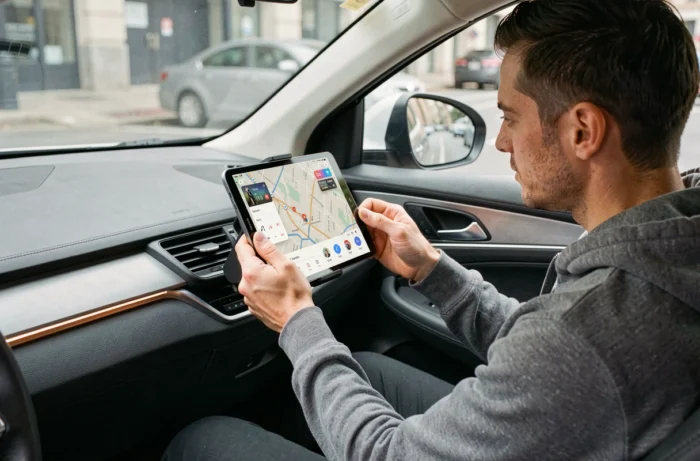
Running CarPlay on an Android tablet requires understanding what happens on the protocol side before choosing hardware or an application. CarPlay relies on a proprietary Apple stream transmitted via USB or Wi-Fi, which no Android tablet can receive natively. Any solution therefore involves a software or hardware intermediary that decodes this stream and displays it on the Android screen.
CarPlay Protocol on Android: What Decoding Involves on the Tablet Side
The CarPlay protocol uses a combination of H.264 video streaming and reversed touch control channels. The Apple smartphone generates the interface, the screen merely displays it and sends back touch events. On a certified car radio, a dedicated chip manages this decoding.
On an Android tablet, this role falls to a third-party application or an external dongle. The AutoKit application or its variants (Carlinkit, LDPlayer for emulation) intercept the CarPlay stream via a USB-C connection or a Wi-Fi adapter, then display it in a full-screen window. The tablet becomes a passive receiver of the rendering generated by the iPhone.
We recommend checking for USB Host (OTG) mode support on the tablet before any purchase. Without this hardware feature, wired CarPlay connection is impossible. Most recent Samsung Galaxy Tab and Lenovo Tab tablets support OTG, but some entry-level models disable it at the firmware level.
For those considering installing a tablet android with carplay for car, the main constraint remains latency. Software decoding on an ARM processor introduces a noticeable delay on touch, typically greater than what a certified car radio offers. MediaTek Helio G-series chips handle this stream less effectively than Snapdragon series 6 and above.
Wireless CarPlay Dongle or Wired USB Connection: Technical Trade-off
The wired connection via USB remains the most stable. A Lightning-to-USB (or USB-C for recent iPhones) cable connected to the tablet’s OTG port, combined with a Carlinkit CPC200-type dongle, establishes the CarPlay link. The dongle handles the protocol negotiation that Apple imposes before allowing streaming.
The wireless connection adds a Wi-Fi Direct layer that degrades latency. Wireless dongles (Carlinkit 5.0, Hermix Nano) create a Wi-Fi access point to which the iPhone connects. The stream then passes to the tablet via USB or Wi-Fi depending on the model. The recently appeared Hermix Nano positions itself as a dedicated bridge between smartphone and dashboard-mounted tablet, managing the CarPlay layer itself and exposing a video/control stream to the tablet.
Here are the criteria that guide the choice between wired and wireless:
- Session stability: wired connections do not suffer from disconnections due to Wi-Fi interference in a metal cabin. Wireless connections experience dropouts, especially in dense urban areas.
- Touch latency: wired offers almost instantaneous feedback, while wireless introduces variable delays depending on the tablet’s processor load and the quality of the dongle.
- Bulk: wireless eliminates the cable between the iPhone and the tablet, but the dongle still requires USB power from the cigarette lighter or a vehicle port.
- iPhone compatibility: recent models perform better wirelessly thanks to Wi-Fi 6, while older iPhones may encounter pairing issues.
Version of Android Auto on the Source Smartphone: An Underestimated Parameter
The stability of the link depends on recent versions of Android Auto on the smartphone. This point concerns users who want to coexist CarPlay (iPhone) and Android Auto (secondary Android phone) on the same tablet. Android Auto versions 17.4 and later modify the behavior of wireless connections, which directly affects the reliability of the link with applications like Headunit Reloaded.
Headunit Reloaded transforms the tablet into an Android Auto head unit. Paired with a CarPlay dongle, the tablet can then receive both ecosystems. We observe that this dual-protocol configuration remains fragile: switching between CarPlay and Android Auto regularly causes crashes if the dongle does not properly manage the release of the USB channel.
Recommended Configuration for Dual Compatibility
Prefer a tablet running Android 12 or higher, with at least a Snapdragon 680. Install Headunit Reloaded for Android Auto and AutoKit (or equivalent) for CarPlay. Use a powered USB hub to connect both the CarPlay dongle and the data cable of the Android phone simultaneously.
Never launch both applications simultaneously. The tablet must switch from one mode to another manually or via a dedicated launcher that properly closes the previous process before opening the next one.
Mounting and Powering the Tablet While Driving
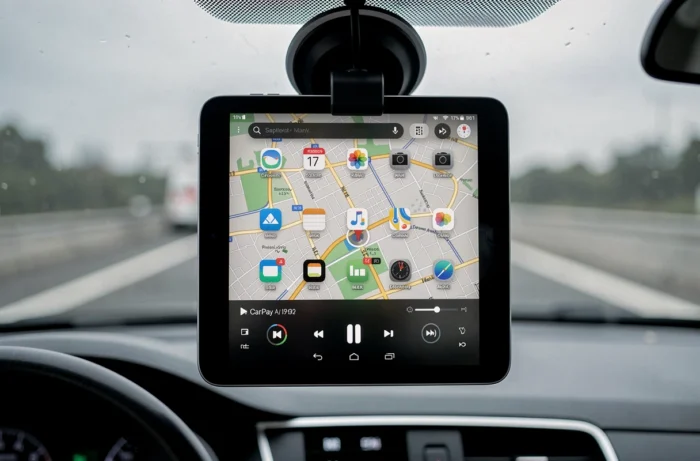
The physical mounting conditions daily usability. A suction cup mount on the windshield is suitable for testing, but road vibration eventually detaches the mount. Clip mounts on air vents do not hold a tablet larger than eight inches.
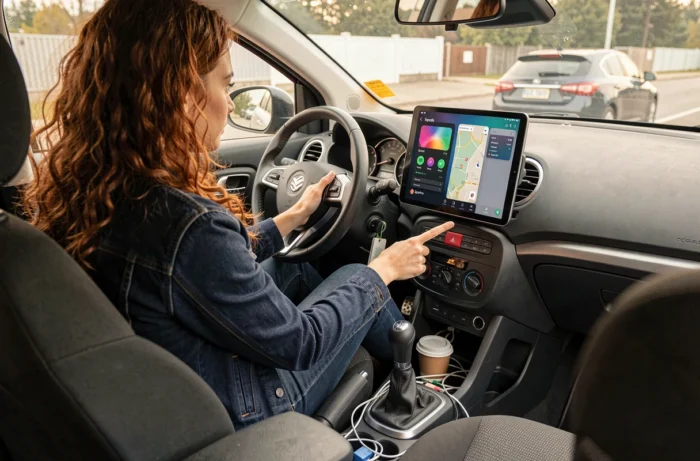
The most sustainable solution remains a screw-mounted bracket on the dashboard or a cradle integrated into a 2-DIN frame if the radio slot is free. Some manufacturers offer 3D-printed frames tailored to specific tablet models.
On the power side, a tablet used continuously with the screen on and GPS active consumes much more than what a standard car USB port provides. A cigarette lighter charger delivering at least 15 W (USB-C Power Delivery) is necessary to prevent the battery from draining during use. Without this, the tablet loses charge despite being plugged in, especially in hot weather when the processor throttles.
- Check that the USB-C cable supports fast charging and simultaneous data (some cheap cables only manage one or the other).
- Turn off the tablet’s Wi-Fi and Bluetooth when only the CarPlay dongle manages the connection, to reduce consumption and interference.
- Activate “Do Not Disturb” mode on the tablet to avoid Android notifications overlapping the CarPlay interface.
The regulatory framework requires that the screen does not obstruct the driver’s field of vision. A positioning that is too high or too centered on the windshield can lead to a citation. The safest mounting remains in a low position, near the center console, at eye level.